

How to Use Virtual Try-On: A Step-by-Step Guide
Step-by-step instructions for your first virtual try-on with FemStyle AI — what photo to upload, how to pick an outfit, and how to get the best result the first time.
If you've signed up for FemStyle AI and aren't sure where to start, this guide walks you through your first virtual try-on, end-to-end. The flow takes about a minute once you have your photo and outfit ready — but a few choices upfront make the difference between "wow, that's me" and "this looks a bit off."
What you'll need
Two photos, that's it:
- A photo of yourself — full body or three-quarter view works best.
- A photo of the outfit — a screenshot from a store works fine, or pick one from our preset gallery.
You don't need professional photography. A clear, decently-lit phone photo is enough.
Step 1 — Upload your photo
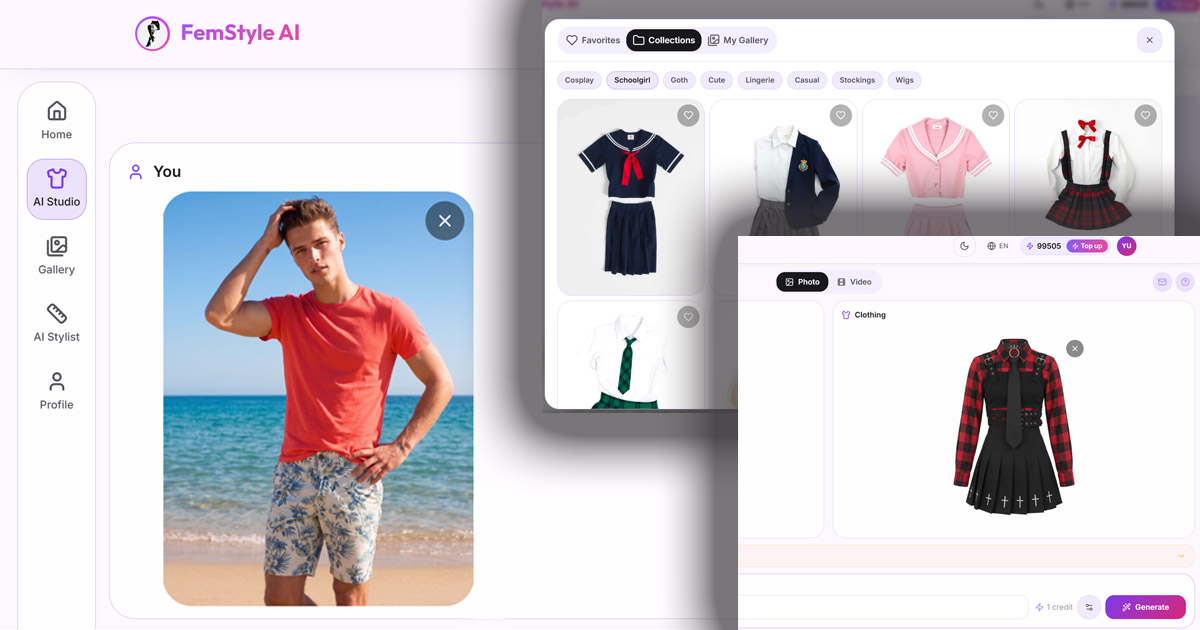
Open virtual try-on and drag your photo into the upload zone. A few tips for the best result:
- Stand naturally — facing the camera, arms slightly away from your body. Avoid wild poses on your first try.
- Plain background — a wall, a bedsheet, anything not visually busy. The AI focuses better when the background isn't competing for attention.
- Good lighting — daylight from a window is ideal. Avoid harsh shadows.
- Tight-fitting clothes work better than baggy ones — the AI can see your real shape and fit the new outfit to it.
Your photo is private. It gets deleted from our servers automatically and is never used to train AI.
Step 2 — Pick an outfit
You have two paths here:
Upload an outfit photo. A picture of a garment on a plain background works best — like a product photo from a store. You can right-click → save image from any e-commerce site.
Or use our preset gallery. We have dozens of pre-built looks across goth, pastel, schoolgirl, lingerie, casual, and more. Click one and it fills in automatically.
If you're not sure which style suits you, chat with our AI stylist first — it'll suggest aesthetics that work for your body before you commit to a try-on.
Step 3 — Generate and review
Hit "Try on" and wait about a minute. You'll see a realistic preview of yourself in the outfit. From there you can:
- Download it to your phone
- Save it to your private gallery (visible only to you)
- Try again with a different outfit, or tweak the same one with custom wishes ("make the skirt shorter," "change to pastel pink")
If the first result looks off
It happens — usually one of three reasons:
- The pose was too tilted — retry standing more straight on.
- The outfit photo had a busy background — try a cleaner product shot.
- Lighting was tough — retry near a window during the day.
Most users get a great result within 2-3 tries. Don't judge the tool by attempt #1.
What to try next
Once you have your first result, the natural next steps:
- Browse 10 femboy aesthetics to find your style
- Pick your first femboy outfit without overthinking
- Chat with the AI stylist for personalized advice
- Animate your favorite look into a short video
Frequently asked questions
Why does the first try sometimes look wrong?
Usually a photo issue — busy background, tilted pose, or the AI confusing baggy clothes with body shape. Retry with a plain background and natural standing pose, and most issues disappear.
Can I edit the result after generation?
You can re-generate with custom wishes (e.g. "shorter skirt," "change color to pastel pink"). The original photo isn't changed — each generation is a fresh attempt.
How many tries does it take to get a good result?
Most users get something they like within 2–3 attempts. The first try is often a learning moment for what photo and outfit combinations work best on your body.
Are my photos really private?
Yes. Source photos are deleted from our servers automatically, generations are visible only in your private gallery, and nothing you upload is used to train AI.
What if I don't like any of my generations?
Talk to our AI stylist first — it'll help you pick a style and outfit that suits your body before you spend credits. Most "bad results" trace back to choosing an outfit that wouldn't have worked in real life either.